Choosing a router for multiple security cameras is the process of matching your router’s bandwidth, processing power, and network features to the total data load your surveillance system generates. The wrong router becomes a single point of failure that causes dropped feeds, laggy footage, and security vulnerabilities.
This guide covers router capacity by tier, critical hardware specifications, wired versus wireless tradeoffs, network optimization features, setup and configuration, common mistakes, brand selection, and how professional monitoring changes your requirements.
Router capacity varies significantly across consumer, business, and enterprise tiers. Consumer routers typically support 4 to 8 cameras, business-grade models handle 10 to 25, and enterprise platforms scale beyond 50 across multi-site deployments, with each tier offering progressively stronger security against documented firmware vulnerabilities.
Hardware specifications determine whether your router can sustain multiple simultaneous video streams. A single 4K camera can demand 8 to 12 Mbps of bandwidth, so total network load climbs quickly as cameras are added. Quad-core processors, sufficient RAM, adequate LAN ports, and Wi-Fi 6 or newer standards all factor into reliable performance.
Wired PoE connections deliver the most stable feeds, while wireless setups offer placement flexibility; most real-world installations benefit from a hybrid approach that combines both. Features like QoS traffic prioritization, MU-MIMO, dual-band or tri-band frequency allocation, and VLAN segmentation keep camera traffic isolated and consistent.
Proper setup, including bandwidth calculation, strategic router placement, and network expansion with managed switches, prevents the most common surveillance failures. Selecting a router brand with low vulnerability history and strong integration with NVRs and PoE switches protects both performance and cybersecurity. AI-powered monitoring systems like Pioneer Security’s further reduce local network demands by processing video at the edge and transmitting only critical data.
Why Does Your Router Matter for Security Camera Performance?
Your router matters for security camera performance because it controls the bandwidth, stability, and data flow that every camera on your network depends on. A weak or mismatched router creates bottlenecks that cause dropped feeds, laggy footage, and unreliable recordings.
Each IP security camera generates a continuous data stream that must travel through your router to reach a recorder, cloud server, or monitoring station. When multiple cameras compete for limited router resources, the network becomes congested. Video quality degrades, motion alerts arrive late, and cameras may disconnect entirely during peak usage.
High-performance routers solve this by providing the processing power, port capacity, and wireless capabilities needed to handle simultaneous video streams without strain. According to ASUS, high-performance routers like the RT-BE88U feature dual 10G ports, quad 2.5G ports, and quad-core 2.6GHz CPUs to support multi-gigabit bandwidth requirements for extensive camera arrays. That level of hardware ensures each camera receives dedicated throughput rather than fighting for shared resources.
For most security camera systems, the router is the single point of failure that determines whether the entire surveillance network performs reliably or collapses under load. Investing in the right router is not a luxury; it is the foundation that every other component in the system relies on. The sections ahead break down how many cameras different routers can support, which specs to prioritize, and how to configure your network for optimal camera performance.
How Many Security Cameras Can a Router Handle?
The number of security cameras a router can handle depends on its class: consumer, business, or enterprise. Each tier supports a different camera count based on processing power, bandwidth capacity, and port availability.
https://drive.google.com/file/d/1h0ShI_kLU4yu0DcjUIf3LXPaW4iekHs4/view
How Many Cameras Can a Consumer-Grade Router Support?
A consumer-grade router can support approximately 4 to 8 security cameras under typical conditions. Most consumer models provide 100 to 300 Mbps of usable throughput across Wi-Fi and a limited number of LAN ports, which restricts how many simultaneous video streams the processor can manage.
Several factors reduce that number quickly:
- Running 4K cameras instead of 1080p doubles or triples per-camera bandwidth demand.
- Sharing the network with smart home devices, streaming, and gaming competes for the same throughput.
- Wireless connections through walls and floors degrade signal quality, lowering effective capacity further.
For most homes with fewer than six cameras, a quality consumer router handles the load. Beyond that, dropped feeds and buffering become common, signaling the need for a higher-tier solution.
How Many Cameras Can a Business-Grade Router Support?
A business-grade router can support approximately 10 to 25 security cameras depending on resolution, compression, and network configuration. These routers feature faster multi-core processors, dedicated QoS engines, and more Gigabit Ethernet ports than consumer models, all of which allow them to prioritize and sustain multiple video streams simultaneously.
Key advantages that increase camera capacity include:
- VLAN support for isolating camera traffic from general business network use.
- Built-in QoS settings that prioritize surveillance data over less critical traffic.
- Compatibility with external PoE switches to expand wired camera connections beyond onboard ports.
For small to mid-sized businesses running a mix of 1080p and 4K cameras, this tier strikes the best balance between cost and reliable performance.
How Many Cameras Can an Enterprise Router Support?
An enterprise router can support 50 or more security cameras across complex, multi-site deployments. Enterprise-grade platforms from brands like Peplink, Cradlepoint, and Cisco deliver dedicated routing engines, redundant WAN failover, and advanced traffic management designed for high-density surveillance networks.
According to a 2026 analysis by 5Gstore examining ten years of CVE data, the average consumer router brand carries a 12-to-1 higher ratio of documented vulnerabilities compared to enterprise-grade brands like Peplink or Cradlepoint. This security gap matters significantly when cameras transmit sensitive footage 24/7.
Beyond raw camera count, enterprise routers provide:
- Centralized management across multiple locations from a single dashboard.
- Hardware-level encryption and automatic firmware patching.
- Scalable architecture that accommodates future camera additions without replacing core infrastructure.
For organizations with large camera arrays, the investment in enterprise routing is less about capacity limits and more about reliability and cybersecurity resilience. Understanding capacity by router class helps narrow down which specifications matter most for your system.
What Router Specs Should You Look For with Security Cameras?
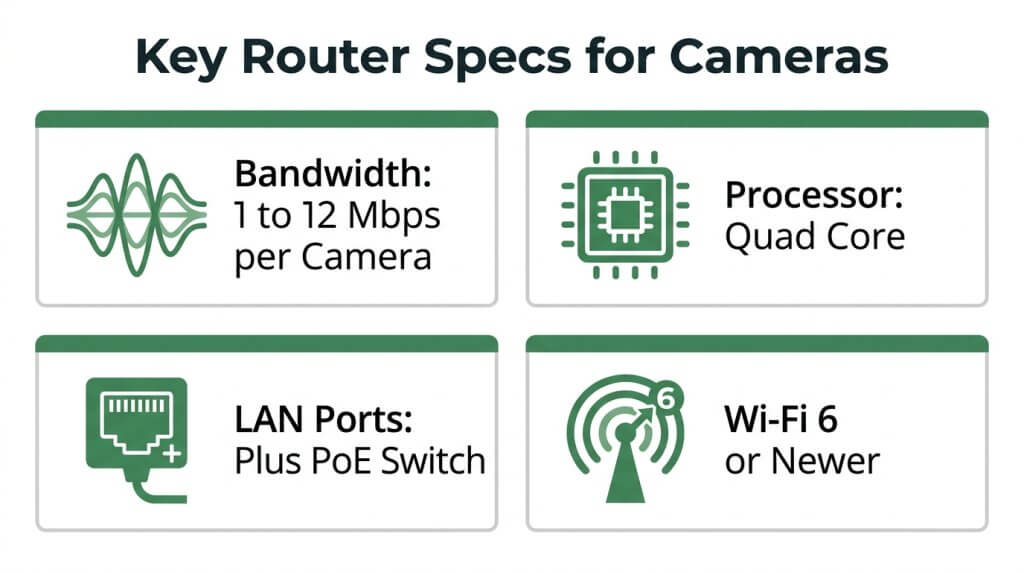
The router specs you should look for with security cameras include sufficient bandwidth capacity, a powerful processor with adequate RAM, enough LAN ports for wired connections, and a modern Wi-Fi standard. Choosing a router with weak specs is also a security risk; according to a 2026 analysis by 5Gstore, D-Link led all manufacturers with approximately 500 documented router vulnerabilities over a 10-year period, followed by Netgear with roughly 450 CVEs.
How Much Bandwidth Do Security Cameras Need?
Security cameras need between 1 and 12 Mbps of bandwidth per camera, depending on resolution and compression settings. A 1080p camera typically uses 1 to 5 Mbps, while a 4K camera can demand 8 to 12 Mbps or more. Multiply each camera’s bitrate by the total number of streams to calculate your system’s full network load.
Not every camera consumes bandwidth constantly, though. According to Verkada, steady-state cameras can reduce their idle bandwidth footprint to as low as 20 kbps by sending only encrypted metadata and thumbnails when no motion is detected. Edge AI cameras further lower consumption by processing video locally instead of streaming continuously to the cloud. Planning for peak load rather than idle averages remains the safest approach for sizing your router.
What Processor and RAM Should a Camera Router Have?
A camera router should have at least a dual-core processor and 512 MB of RAM to manage multiple simultaneous video streams without dropping frames. For systems exceeding four cameras, a quad-core processor is strongly recommended. Wi-Fi 6 routers like the Grandstream GWN7062 use 64-bit 1.2 GHz quad-core processors specifically to handle high-density traffic demands from modern secure networks.
Processing power matters because the router must handle NAT translation, QoS prioritization, and encryption for every connected camera simultaneously. Professional NVR systems paired with these routers often require at least 80 Mbps of throughput capacity to reliably support eight cameras recording at 8MP resolution with H.265 compression. Underpowered hardware creates bottlenecks that no amount of bandwidth can fix.
Why Does the Number of LAN Ports Matter for Wired Cameras?
The number of LAN ports matters for wired cameras because each PoE or IP camera requires a dedicated Ethernet connection to the network. Most consumer routers include only four LAN ports, which limits a wired system before it even starts.
For systems beyond four cameras, a dedicated PoE switch is essential. According to Verkada, networking engineers recommend using dedicated PoE switches to expand NVR capacity, allowing a system to handle more cameras than a router’s onboard ports would otherwise permit. A managed PoE switch also simplifies cable runs by delivering both power and data over a single Ethernet cable to each camera. When planning your port count, account for NVRs, access points, and any non-camera devices that also need wired connections.
What Wi-Fi Standard Is Best for Wireless Security Cameras?
The best Wi-Fi standard for wireless security cameras is Wi-Fi 6 (802.11ax) or newer. Wi-Fi 6 supports more simultaneous device connections, delivers higher throughput per stream, and handles the constant data demands of multiple cameras far better than older standards.
Wi-Fi 6E extends these capabilities into the 6 GHz band and, according to Cisco, mandates WPA3 security for certification, eliminating backward compatibility with WPA2. This dedicated frequency band is especially valuable for surveillance because it avoids the congestion found on 2.4 GHz and 5 GHz channels. Overcrowded channels and physical barriers like dense walls remain the top factors that degrade wireless camera reliability.
For properties where some camera locations face signal obstructions, hybrid systems offer a practical solution. These setups combine wireless Wi-Fi cameras in accessible areas with wired PoE cameras in high-reliability zones, all managed through a single central recorder. Understanding your Wi-Fi standard’s capabilities helps you decide which network features will keep your camera system running smoothly.
Should You Use a Wired or Wireless Router for Security Cameras?
You should choose based on your camera types and installation environment. Wired routers deliver the most stable connections, wireless routers offer flexible placement, and hybrid setups combine both strengths.
When Should You Choose a Wired Router for Cameras?
You should choose a wired router for cameras when reliability and consistent video quality are top priorities. Wired connections eliminate signal interference from other wireless devices or electronic noise, making them the standard for systems running multiple high-resolution streams simultaneously.
Wired setups are ideal when:
- The property has existing Ethernet cabling or conduit pathways.
- Cameras record in 4K or higher resolutions that demand sustained bandwidth.
- The system feeds an NVR that requires uninterrupted data flow.
- Critical areas need 24/7 recording without dropout risk.
For any deployment where a single lost frame could matter, wired infrastructure is the safer foundation. The installation cost is higher upfront, but the long-term stability justifies it for most commercial and high-camera-count residential systems.
When Should You Choose a Wireless Router for Cameras?
You should choose a wireless router for cameras when running Ethernet cable is impractical, cost-prohibitive, or physically impossible. Rental properties, historic buildings, and sites with limited renovation options all benefit from wireless camera connectivity.
Wireless routers work well when:
- The system includes fewer than six cameras at 1080p resolution.
- Cameras are positioned in temporary or frequently changing locations.
- The property lacks attic, wall, or conduit access for cable runs.
- Quick deployment matters more than maximum stream stability.
According to Horizon Powered, wired security systems are typically more reliable than wireless ones because they are not susceptible to signal interference from other wireless devices or electronic noise. That reliability gap narrows with modern Wi-Fi 6 and 6E routers, but wireless setups still require careful channel selection and access point placement to maintain consistent feeds.
When Does a Hybrid Wired and Wireless Setup Make Sense?
A hybrid wired and wireless setup makes sense when a property has both easy-to-cable zones and hard-to-reach areas that require flexible placement. Most real-world security installations fall into this category.
Hybrid configurations work by connecting high-priority cameras (entry points, cash registers, server rooms) via Ethernet for maximum reliability, while placing secondary cameras (parking perimeters, storage areas, temporary monitoring points) on Wi-Fi. A single central recorder can manage both wired IP cameras and wireless Wi-Fi cameras simultaneously, balancing installation ease with high-reliability zones.
This approach is often the most practical and cost-effective strategy for properties with mixed construction types or phased camera rollouts. Understanding which features your router needs to support this setup leads directly into network optimization.
What Router Features Help Optimize Security Camera Networks?
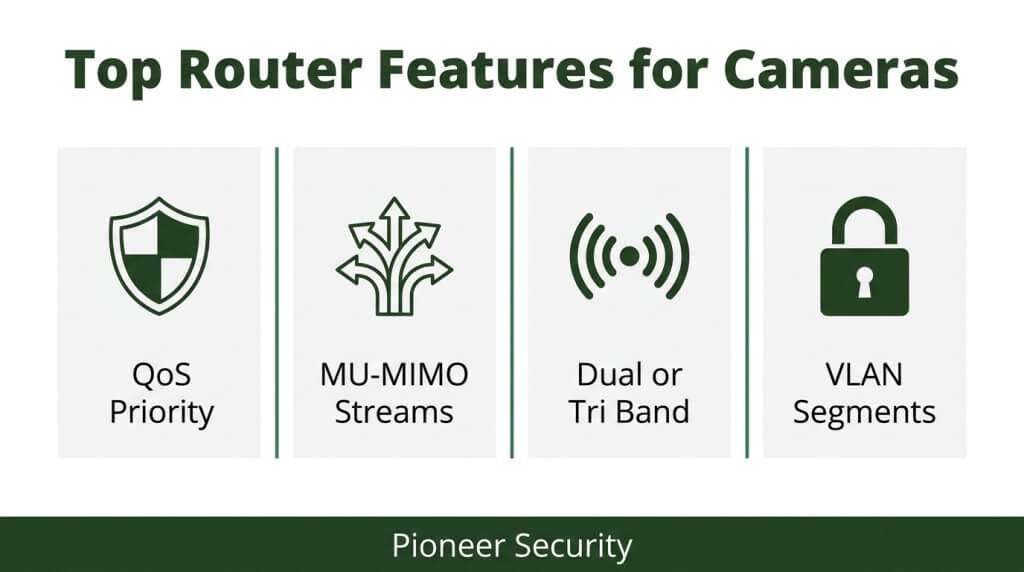
Router features that optimize security camera networks include QoS traffic prioritization, MU-MIMO multi-device support, dual-band or tri-band frequency allocation, and VLAN segmentation. According to SecurityWeek, cybersecurity professionals note that “routers are the riskiest devices in enterprise networks” due to the high volume of critical firmware vulnerabilities, making feature selection essential.
How Does Quality of Service Prioritize Camera Traffic?
Quality of Service prioritizes camera traffic by assigning higher network priority to video surveillance data over less critical traffic like web browsing or file downloads. QoS architectures in network routers ensure low latency and guaranteed throughput for real-time monitoring applications, according to research from the University of Texas at Arlington.
Without QoS enabled, a single large file download or video call can starve camera streams of the bandwidth they need, causing dropped frames or delayed alerts. Properly configured QoS rules reserve a minimum bandwidth allocation for each camera’s stream, so surveillance footage remains uninterrupted even during peak network usage. For business deployments, pairing QoS with PoE cameras delivers the most stable results because wired connections provide superior image quality and long-term reliability compared to Wi-Fi alternatives.
Why Is MU-MIMO Important for Multiple Camera Streams?
MU-MIMO is important for multiple camera streams because it allows a router to communicate with several devices simultaneously rather than sequentially. Traditional single-user MIMO forces devices to take turns transmitting data, which creates bottlenecks when multiple cameras compete for bandwidth.
According to Cisco, MU-MIMO technology in routers like the RV345 enables 4×4 spatial streams at 5GHz to support multiple simultaneous high-bandwidth device connections without congestion. This capability matters most in wireless camera deployments where four or more cameras share the same access point. Each spatial stream serves a different camera independently, preventing the latency spikes that sequential communication introduces. For any system with more than a handful of wireless cameras, MU-MIMO should be considered a baseline requirement rather than an optional upgrade.
How Do Dual-Band and Tri-Band Routers Help Camera Systems?
Dual-band and tri-band routers help camera systems by separating surveillance traffic onto dedicated radio frequencies, reducing competition with everyday devices. A dual-band router operates on both 2.4GHz and 5GHz bands, while a tri-band router adds a second 5GHz or 6GHz channel.
The practical advantage is straightforward: cameras can occupy one band exclusively while smartphones, laptops, and smart home devices use another. This frequency isolation prevents household or office traffic from degrading video quality. Tri-band routers take this further by offering a third channel, which proves valuable in environments running six or more wireless cameras alongside heavy general network usage. Dedicating an entire band to surveillance effectively creates a private highway for camera data, minimizing latency without requiring complex QoS rules for every device on the network.
What Role Does VLAN Support Play in Camera Security?
VLAN support plays a critical role in camera security by logically isolating surveillance devices from the rest of the network. A Virtual Local Area Network segments camera traffic into its own broadcast domain, preventing unauthorized users on the main network from accessing camera feeds or NVR storage.
This isolation serves two purposes. First, it limits the attack surface; if a workstation or IoT device is compromised, the attacker cannot pivot directly to the camera system. Second, VLANs contain broadcast traffic, reducing unnecessary network noise that can degrade camera performance. For environments handling sensitive data, VLAN segmentation is increasingly recognized as a foundational security measure rather than an optional configuration. Any router selected for a multi-camera deployment should support 802.1Q VLAN tagging to enable this level of protection.
With the right feature set configured, proper router setup and placement ensure these capabilities perform as intended.
How Should You Set Up Your Router for Multiple Cameras?
You should set up your router for multiple cameras by calculating total bandwidth needs, optimizing physical placement, configuring QoS settings, and expanding with switches or access points as your system grows.
How Do You Calculate Total Bandwidth for Your Camera System?
You calculate total bandwidth for your camera system by multiplying each camera’s main stream bitrate by the number of cameras, then adding all sub-stream bitrates together. A 1080p HD IP camera typically consumes 1 to 5 Mbps, while a 4K camera generates 8 to 12 Mbps or more, according to Seing Cloud’s bandwidth reference guide.
For a system with eight 4K cameras at 10 Mbps each, the main streams alone require 80 Mbps. Sub-streams for mobile viewing add further load. Always build in a 20 to 30 percent buffer above your calculated total. Edge-based processing and hybrid cloud storage can reduce continuous bandwidth dependency, though the raw calculation remains the foundation for router selection.
Where Should You Place Your Router for Best Camera Coverage?
You should place your router in a central location relative to your camera positions, elevated and free from physical obstructions. Dense walls, metal surfaces, and large appliances absorb or reflect Wi-Fi signals, creating dead zones that cause camera disconnections.
Practical placement guidelines include:
- Mount the router at ceiling height or on a high shelf to maximize signal propagation.
- Position it equidistant from the farthest cameras rather than near a single cluster.
- Avoid placing it inside metal cabinets, closets, or near microwave ovens.
- Keep at least 3 feet of clearance from other electronic devices that emit interference.
For properties where cameras span multiple floors or buildings, a single router rarely provides adequate coverage. That limitation leads directly to whether additional network hardware is necessary.
How Do You Configure QoS Settings for Camera Priority?
You configure QoS settings for camera priority by accessing your router’s admin panel and assigning higher bandwidth priority to your camera system’s IP addresses or device MAC addresses. This ensures video surveillance traffic receives guaranteed throughput before other devices consume available bandwidth.
The basic configuration steps are:
- Log into your router’s admin interface, typically at 192.168.1.1.
- Locate the QoS or Traffic Management section.
- Create a high-priority rule targeting your NVR’s IP address or each camera’s MAC address.
- Set video traffic as the highest priority tier above general browsing and downloads.
- Save and reboot the router to apply changes.
Without QoS enabled, a single large file download or streaming session on the same network can starve cameras of bandwidth, causing dropped frames or offline alerts.
When Should You Add a Network Switch or Access Point?
You should add a network switch or access point when your router’s physical ports are fully occupied, wireless coverage cannot reach all camera locations, or total device count exceeds the router’s connection capacity. A managed PoE switch is particularly valuable because it delivers both data and power to cameras over a single Ethernet cable.
Key scenarios that warrant expansion include:
- Your camera count exceeds the router’s four LAN ports.
- Wireless cameras in distant areas experience frequent signal drops.
- You need network segmentation via VLANs to isolate camera traffic from business systems. According to Accountable, VLAN-based segmentation is a primary method for meeting HIPAA compliance by restricting access to sensitive data flows.
Expanding with dedicated switches and access points keeps each camera reliably connected without overloading your primary router.
What Router Mistakes Cause Security Camera Problems?
Router mistakes that cause security camera problems include insufficient bandwidth allocation, Wi-Fi interference from physical obstacles and congested channels, and neglected firmware updates that expose the network to vulnerabilities. Each of these errors degrades camera reliability in distinct ways.
Why Do Cameras Drop Offline with Too Little Bandwidth?
Cameras drop offline with too little bandwidth because each device requires a sustained data stream that the router cannot deliver when network capacity is overcommitted. A single 4K camera generates 8 to 12 Mbps of network load, so even four cameras can saturate a budget router’s throughput. When total camera bitrate exceeds available bandwidth, streams begin buffering, dropping frames, or disconnecting entirely.
Common causes of bandwidth shortfalls include:
- Running all cameras at maximum resolution without using efficient H.265 compression.
- Sharing the same network with high-traffic devices like streaming TVs and gaming consoles.
- Failing to calculate total network load before adding cameras to the system.
This is one of the most preventable issues in surveillance networking; a simple bandwidth audit before installation eliminates most disconnection problems.
How Does Wi-Fi Interference Degrade Camera Feeds?
Wi-Fi interference degrades camera feeds by disrupting the wireless signal between the router and each camera, causing packet loss, latency spikes, and frozen video. According to AT&T, physical barriers and dense walls between routers and wireless cameras are documented as top factors that block Wi-Fi signals and reduce surveillance network reliability.
Interference sources that commonly affect camera systems include:
- Congested Wi-Fi channels shared with neighboring networks.
- Thick concrete, brick, or metal walls between the router and outdoor cameras.
- Competing wireless devices like baby monitors, microwaves, and Bluetooth speakers operating on overlapping frequencies.
Switching to less congested channels or dedicating a separate band exclusively to cameras often resolves feed degradation without requiring hardware upgrades.
What Happens When You Ignore Firmware Updates?
Ignoring firmware updates leaves your router exposed to known security vulnerabilities that attackers actively exploit to access camera feeds and network data. A 2025 analysis by DeepStrike found that vulnerability exploits in network equipment accounted for 20% of all security breaches, representing a 34% year-over-year increase in this attack vector.
Outdated firmware also causes performance issues:
- Unpatched bugs trigger random reboots that knock all connected cameras offline.
- Missing protocol updates reduce compatibility with newer camera models.
- Security flaws allow unauthorized users to view or disable camera streams remotely.
Enabling automatic firmware updates, or scheduling manual checks monthly, is one of the simplest steps to protect a surveillance network. Understanding these common router mistakes helps you evaluate whether a professionally monitored system might simplify your network requirements.
Which Router Brands Work Best for Security Camera Systems?
The router brands that work best for security camera systems depend on deployment scale. TP-Link, Netgear, and Asus lead the consumer segment, while Ubiquiti and Cisco dominate mid-sized to enterprise surveillance networks.
The right brand must integrate smoothly with NVRs, DVRs, NAS devices, and PoE switches, since these components collectively define total incoming network bandwidth limits. A 2026 market analysis identifies these five brands as the primary choices across all deployment tiers. Security experts specifically recommend avoiding traditional consumer routers for surveillance due to high vulnerability counts, suggesting that “the best of the lot” among consumer-facing brands is Asus, according to RouterSecurity.org.
For systems that rely on multiple cameras feeding into a centralized recorder, the router’s compatibility with network video recorders and PoE infrastructure matters as much as raw throughput. Systems integrators emphasize that “intelligent security systems are only of use when optimized appropriately” through a converged physical and cyber security network configuration. This means selecting a brand that supports VLAN segmentation, QoS prioritization, and firmware update consistency.
For most small-to-mid-size camera deployments, investing in an enterprise-adjacent brand like Ubiquiti often delivers better long-term value than stretching a consumer router beyond its intended use case. With brand selection clarified, a professionally monitored system can further simplify your network requirements.
How Does a Professionally Monitored System Change Your Router Needs?
A professionally monitored system changes your router needs by shifting processing and analytics off your local network and onto managed infrastructure. The following subsections cover how Pioneer Security’s AI monitoring reduces bandwidth demands and summarize key router selection takeaways.
Can AI-Powered Live Video Monitoring From Pioneer Security Reduce Your Network Demands?
Yes, AI-powered live video monitoring from Pioneer Security can reduce your network demands. Pioneer Security’s system uses edge AI processing and cloud orchestration to minimize the continuous data streams that burden a typical router. Instead of pushing full-resolution video to a remote server around the clock, cameras equipped with onboard intelligence send only metadata and critical event clips when no threat is detected.
According to IEEE Communications Surveys & Tutorials, AI-powered orchestration between cloud and edge computing allows systems to offload only critical intermediate results to servers, improving reliability in network-constrained environments. When cameras separate metadata from video streams, the total cost of network ownership drops significantly because your router handles lightweight data packets rather than constant high-definition feeds.
This architecture also strengthens cybersecurity. With vulnerability exploits in network equipment accounting for 20% of all security breaches in 2025, a professionally managed system reduces exposure by keeping sensitive video processing local. Pioneer Security’s US-based monitoring centers, Nvidia GPU-powered AI hubs, and 4K PoE cameras are designed to work together as a converged security network, so your router bears far less load than a traditional DIY setup demands.
What Are the Key Takeaways for Choosing a Router for Multiple Security Cameras?
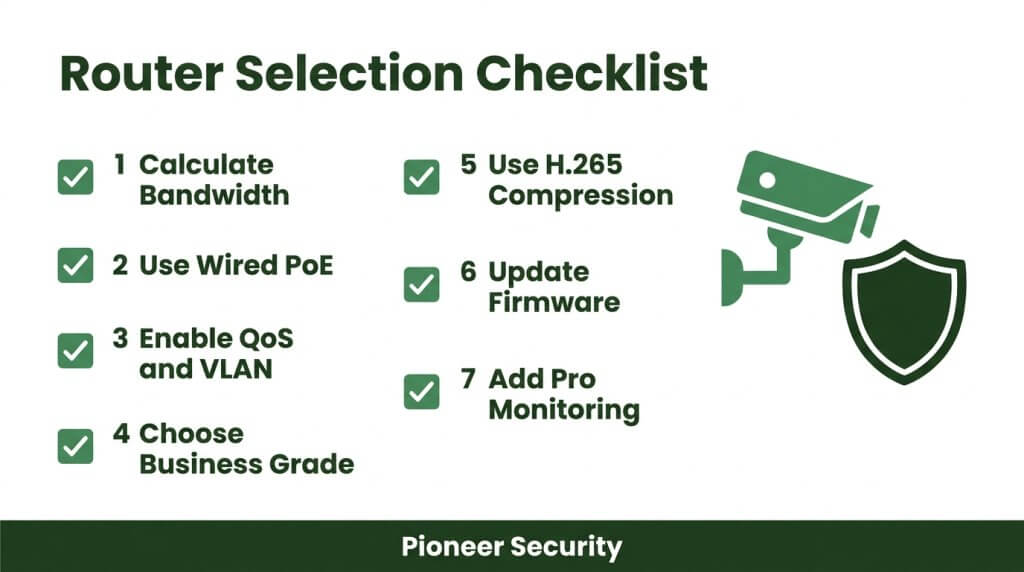
The key takeaways for choosing a router for multiple security cameras are:
- Calculate your total bandwidth first. Multiply each camera’s bitrate by the number of streams, then add sub-stream loads and leave a 20% headroom buffer.
- Prioritize wired connections. PoE cameras on dedicated switches deliver more stable feeds than Wi-Fi and free wireless bandwidth for other devices.
- Enable QoS and VLAN segmentation. Prioritizing camera traffic and isolating surveillance on its own network segment protects both performance and cybersecurity.
- Choose business-grade or enterprise hardware. Consumer router brands carry significantly more documented vulnerabilities than enterprise-grade alternatives, according to a 2026 analysis by 5Gstore.
- Use H.265 compression. Cameras encoding in H.265 cut bandwidth consumption by up to half compared to H.264, directly easing router load.
- Keep firmware current. Unpatched routers remain one of the riskiest devices on any network.
- Consider professional monitoring. A system like Pioneer Security’s AI-powered live video monitoring offloads processing from your local network, simplifying router requirements while adding proactive, real-time protection.
Selecting the right router is foundational, but pairing it with Pioneer Security’s professionally monitored system ensures your cameras perform reliably while stopping crime before it starts.