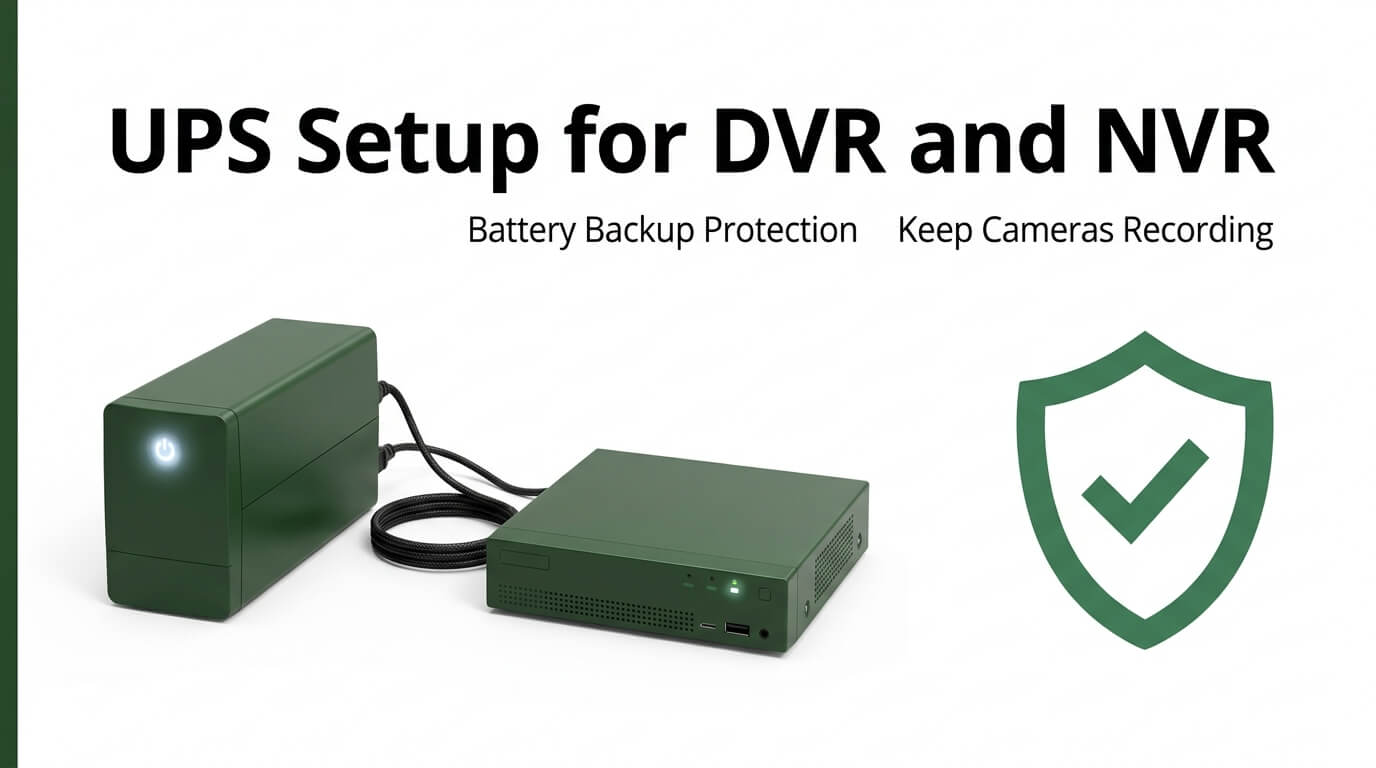
A UPS (uninterruptible power supply) for a security camera DVR/NVR is a battery backup device that provides instant, conditioned power to your surveillance recorder during outages and surges, preventing footage loss and hardware damage.
This guide covers why your DVR/NVR needs battery backup, how to choose and size the right UPS, step-by-step installation and software configuration, common mistakes to avoid, long-term maintenance, and how professional monitoring adds protection beyond power.
Power outages force improper shutdowns that corrupt stored footage, while everyday micro-surges silently degrade hard drives and recording hardware over time. Even modest surveillance setups drawing 35 to 40 watts are vulnerable without battery protection.
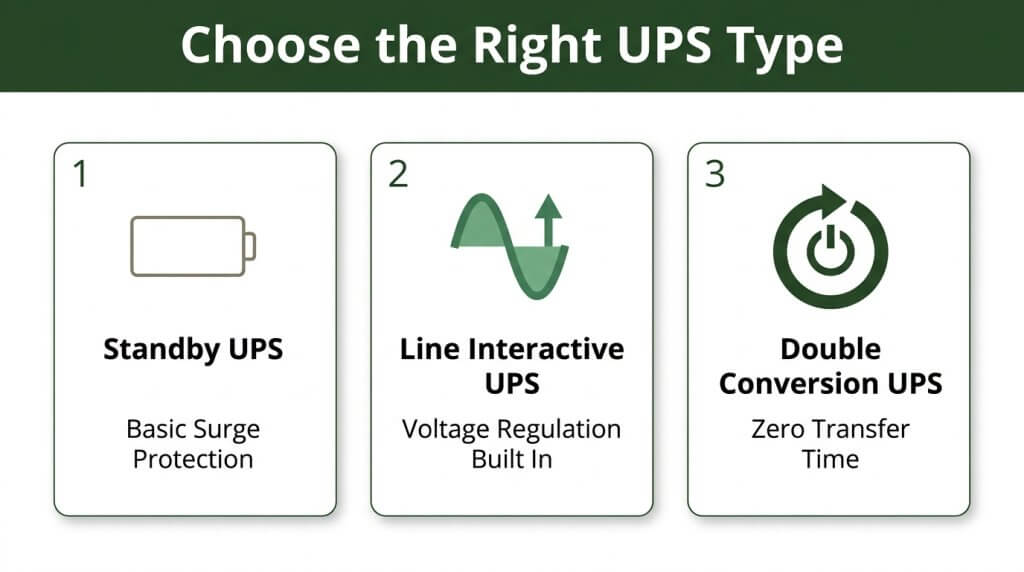
Three UPS types serve different needs: standby units offer basic backup for less critical equipment, line-interactive models regulate voltage fluctuations automatically for most home and small commercial systems, and online double-conversion units deliver zero-transfer-time protection for mission-critical, high-channel environments.
Proper sizing requires totaling every connected device’s wattage, converting to volt-amperes using the power factor, and adding 30% headroom for safety and future expansion. Skipping this calculation leads to overload alarms and system failures.
Installation involves selecting a ventilated location, connecting only essential surveillance devices to battery-backed outlets, separating power and data cable runs, and running a simulated outage test. Configuring UPS management software to trigger graceful NVR shutdowns and send real-time power alerts is equally critical.
Ongoing reliability depends on replacing lead-acid batteries every three to five years (or lithium-ion every eight to twelve), testing backup quarterly, and avoiding dangerous practices like daisy-chaining UPS units or plugging in non-essential devices.
Why Does Your Security Camera DVR/NVR Need a UPS?
Your security camera DVR/NVR needs a UPS because power outages and surges can destroy footage, corrupt hard drives, and leave your property unmonitored. The following sections cover what happens during outages, how surges cause hardware damage, and how a UPS maintains continuous recording.
What Happens to Security Footage During a Power Outage?
Security footage during a power outage is at immediate risk of corruption or permanent loss. DVRs and NVRs stop functioning first during a power failure to prevent data corruption, followed by cameras and sensors. Without battery support, AI analytics also go offline.
According to Pelco Support, a break in supplied power can cause stored data to corrupt, leading to failed data operations or destruction of memory space in security cameras. Unplanned outages force improper shutdowns of storage devices, compounding the damage.
The power draw involved is modest; a typical 16-channel NVR with four cameras and two hard drives consumes only 35 to 40 watts. Basic PoE cameras draw as little as 5 watts each. These low loads mean even a small, appropriately sized UPS can prevent catastrophic data loss during an outage.
Can Power Surges Damage Your DVR/NVR Hardware?
Yes, power surges can damage your DVR/NVR hardware, and the most dangerous surges are often the least obvious. According to a DITEK Surge Protection whitepaper, smaller internal surges caused by everyday equipment cycling account for the majority of surge damage to electrical devices, far exceeding harm from large external events like lightning strikes.
DVR and NVR hard drives are particularly vulnerable because spinning platters and read/write heads are sensitive to sudden voltage spikes. Over time, repeated micro-surges degrade internal components and shorten the lifespan of your entire surveillance system. A UPS with built-in surge suppression filters these fluctuations before they ever reach your recorder.
How Does a UPS Keep Your Surveillance System Recording?
A UPS keeps your surveillance system recording by providing instant battery power when mains electricity drops, eliminating any gap in footage. Line-interactive UPS systems offer strong protection for surveillance applications, continuously regulating voltage fluctuations without the higher cost of online double-conversion units.
During an extended outage, UPS management software can trigger automatic, graceful shutdowns of your NVR when battery runtime runs low, preventing the data corruption that sudden power loss causes. This controlled shutdown preserves existing recordings on the hard drive.
For most residential and small commercial camera setups, a line-interactive UPS strikes the best balance between protection and cost. Investing in proper battery backup is one of the simplest ways to ensure your surveillance system never has a blind spot when it matters most.
With your UPS need established, selecting the right type for your DVR/NVR is the next step.
What Type of UPS Should You Choose for a DVR/NVR?
The type of UPS you should choose for a DVR/NVR depends on how critical your surveillance system is and how clean your power supply needs to be. The three main options are standby, line-interactive, and online double-conversion UPS systems.
Standby UPS
A standby UPS is the most basic type of uninterruptible power supply. It provides surge protection and switches to battery backup only when incoming voltage falls below or rises above a safe threshold. According to GenServe, standby UPS systems are suitable for less critical office equipment rather than dedicated security infrastructure. The transfer time between utility power and battery can reach several milliseconds, which may cause brief recording gaps on sensitive DVR or NVR hardware. For a surveillance system that needs continuous, uninterrupted footage, this delay makes standby models a less reliable choice.
Line-Interactive UPS
A line-interactive UPS regulates voltage fluctuations automatically through a built-in autotransformer before switching to battery. This design corrects minor sags and surges without draining the battery, which extends overall runtime during unstable power conditions. For most residential and small commercial DVR/NVR setups, a line-interactive model strikes the best balance between protection and cost. It handles the everyday voltage irregularities that can slowly degrade hard drives and recording hardware over time, all without the premium price of full double-conversion systems. If your area experiences frequent brownouts or voltage swings, this is typically the most practical tier to consider.
Online Double-Conversion UPS
An online double-conversion UPS continuously converts incoming AC power to DC and back to AC, delivering perfectly conditioned electricity to connected devices. This process eliminates transfer time entirely; the battery is always in the power path. According to a study published by IntechOpen, online double-conversion UPS systems protect against all nine common power problems, making them superior for critical data environments. For high-channel NVR systems managing dozens of cameras, or facilities where any recording gap creates a serious liability, double-conversion is the standard. The trade-off is higher cost and greater energy consumption, but for mission-critical surveillance, that investment pays for itself.
With the right UPS type selected, the next step is calculating the correct size for your specific load.
How Do You Calculate the Right UPS Size for Your System?
You calculate the right UPS size by totaling device wattage, converting to VA, and adding headroom. The following subsections cover load calculation, runtime planning, and capacity matching.
What Is the Total Wattage of Your DVR/NVR and Cameras?
The total wattage of your DVR/NVR and cameras is the sum of each device’s individual power consumption. Start by checking the label or spec sheet on every piece of equipment the UPS will support.
To calculate total wattage:
- Record the wattage rating for your DVR or NVR unit.
- Add the wattage of each connected camera.
- Include any PoE switches, routers, or network equipment on the same UPS circuit.
A typical 16-channel NVR with four cameras and two hard drives draws roughly 35 to 40 watts. Basic PoE security cameras can consume as little as 5 watts each, though higher-resolution models with IR illumination draw more. Listing every device ensures no load goes unaccounted for during sizing.
How Many Minutes of Backup Runtime Do You Need?
The number of minutes of backup runtime you need depends on your outage risk and shutdown requirements. Most surveillance systems need enough runtime to either ride through brief outages or complete a graceful shutdown that protects recorded footage.
Consider these factors when setting your target runtime:
- Average outage length in your area: Locations with frequent short outages may need only 10 to 15 minutes; areas prone to extended storms may need 30 minutes or more.
- Graceful shutdown time: If UPS software triggers an automatic NVR shutdown, allow sufficient minutes for the process to complete safely.
- Future expansion: Additional cameras or storage devices increase the load, which reduces runtime on the same battery.
According to a 2025 report by ACDC Integrated Solutions, installing a UPS without calculating the total load, including future expansion needs and specific runtime requirements, often results in frequent overload alarms and system failures. Setting a clear runtime target before purchasing prevents undersizing.
What Battery Capacity in VA/Watts Matches Your Load?
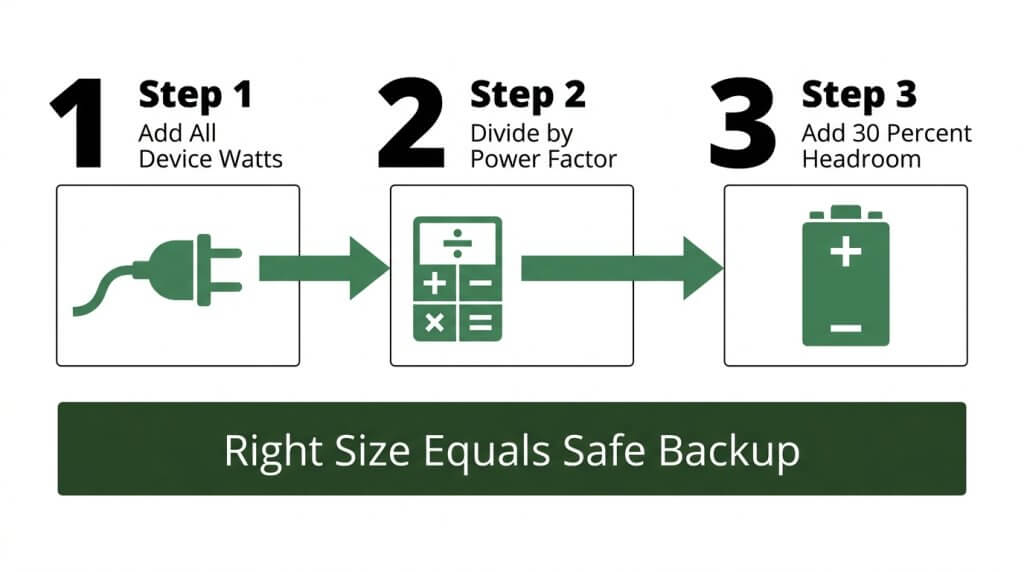
The battery capacity in VA/Watts that matches your load is determined by converting your total wattage into volt-amperes and adding a safety margin. Since UPS units are rated in VA while most devices list watts, bridging this gap is essential.
Follow this process:
- Divide each device’s wattage by the power factor (typically 0.6 to 0.8 for consumer UPS units) to get VA.
- Sum the VA values of all connected equipment.
- Add 30% headroom to the total for safety and future expansion.
For example, a system drawing 80 watts at a 0.8 power factor requires 100 VA before headroom. Adding 30% brings the minimum UPS rating to 130 VA. In practice, most small surveillance setups pair well with a 750 VA or 1500 VA unit depending on camera count and desired runtime. Choosing a UPS rated above your calculated threshold protects against overload while leaving room to grow.
With your UPS properly sized, gathering the right equipment and tools prepares you for installation.
What Equipment and Tools Do You Need Before Installation?
The equipment and tools you need before installation include the correctly sized UPS unit, appropriate cables, surge protection, and basic hand tools. Having everything ready prevents delays and ensures a safe, organized setup.
- UPS unit rated to match your calculated VA/wattage load with at least 30% headroom.
- UPS-compatible surge protector if your model lacks built-in surge suppression.
- Ethernet cables (Cat5e or Cat6) for connecting PoE switches and IP cameras.
- Power cables supplied with the UPS, plus spares for each connected device (DVR, NVR, monitor, PoE switch).
- USB or serial data cable for connecting the UPS to a management computer running monitoring software.
- Cable ties, Velcro straps, and cable management clips for organized routing.
- Label maker or adhesive labels to identify each cable and outlet connection.
- Phillips and flathead screwdrivers for mounting brackets or terminal blocks.
- Multimeter to verify outlet voltage and confirm proper grounding before plugging in the UPS.
- Flashlight or headlamp for working in server closets or poorly lit equipment areas.
- Notepad or digital checklist documenting each device’s wattage, connection port, and outlet assignment.
According to UPS Solutions, proper UPS installation requires selecting a location with adequate ventilation and controlled temperature to prevent overheating and ensure battery longevity. Gathering all components beforehand, including ventilation considerations for your chosen spot, makes the physical installation far smoother. With your equipment staged and verified, the step-by-step installation process can begin.
How Do You Install a UPS for a DVR/NVR Step by Step?
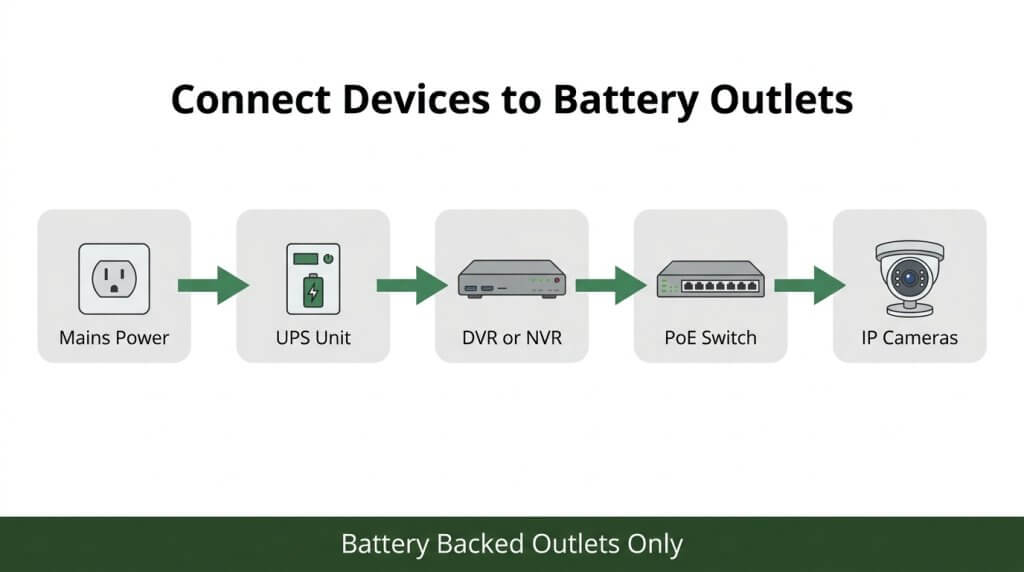
You install a UPS for a DVR/NVR by selecting a ventilated location, connecting devices to battery-backed outlets, routing cables safely, and running a power-on test. The following steps walk through each stage.
How Do You Choose the Right Location for the UPS?
You choose the right location for the UPS by selecting a dry, well-ventilated area near your DVR/NVR equipment rack. Proper UPS installation requires a spot with adequate airflow and controlled temperature to prevent overheating and extend battery life. Avoid enclosed cabinets without ventilation, closets with no air circulation, or areas exposed to direct sunlight.
Key placement criteria include:
- Position the UPS within cable reach of the DVR/NVR and PoE switch.
- Keep it elevated off the ground to protect against minor water intrusion.
- Ensure the wall outlet provides a dedicated, grounded circuit.
- Leave at least four inches of clearance behind the unit for exhaust airflow.
How Do You Connect the DVR/NVR to the UPS Outlets?
You connect the DVR/NVR to the UPS outlets by plugging the recorder’s power cable directly into a battery-backed outlet on the UPS. Most units label these outlets separately from surge-only ports; the battery-backed side is where your DVR or NVR must go to maintain recording during an outage. Never use an extension cord between the UPS and your recorder, as this introduces unnecessary resistance and potential failure points. Plug the DVR/NVR in while the UPS is powered off, then verify the outlet assignment matches the battery-backup group in the unit’s documentation.
How Do You Connect PoE Switches and IP Cameras to the UPS?
You connect PoE switches and IP cameras to the UPS by plugging the PoE switch’s power adapter into a second battery-backed outlet on the same UPS. Since PoE switches deliver power and data to IP cameras over Ethernet, backing up the switch keeps all connected cameras operational during an outage. Prioritize battery-backed outlets for the switch rather than individual camera power supplies. If your system uses a separate PoE injector for each camera, connect only the injectors serving critical coverage zones. This approach conserves UPS capacity for the devices that matter most.
How Do You Route and Manage the Cables Safely?
You route and manage the cables safely by separating power cables from data cables and securing each run with cable ties or management trays. According to a 2024 MDPI study on laboratory safety hazards, improper connection of electrical wires, such as daisy-chaining, is a recurrent safety risk in environments with dense cabling.
Follow these practices to keep your installation clean and hazard-free:
- Run power and Ethernet cables along separate paths to reduce electromagnetic interference.
- Use hook-and-loop ties instead of zip ties for easier future maintenance.
- Label each cable at both ends with device name and port number.
- Avoid running cables across walkways or under carpet where they can overheat.
How Do You Power On and Test the UPS System?
You power on and test the UPS system by plugging the unit into the wall outlet, pressing the power button, and verifying that all connected devices boot normally. Once the system is running, simulate a power failure by unplugging the UPS from the wall. Your DVR/NVR, PoE switch, and cameras should continue operating seamlessly on battery power. According to Gruber Power Services, online double-conversion UPS systems provide zero transfer time to battery, protecting against all nine common power problems in critical environments.
During your test, confirm the following:
- The UPS status display shows no overload warnings.
- The DVR/NVR continues recording without interruption or file corruption.
- All IP cameras remain online through the PoE switch.
- The UPS audible alarm activates to signal battery mode.
Record the measured runtime and compare it against your calculated load requirements. For most surveillance setups, this initial test is the single best way to catch sizing errors before they matter during a real outage.
How Do You Configure UPS Software and Alerts for Your DVR/NVR?
You configure UPS software and alerts for your DVR/NVR by installing the manufacturer’s management application, connecting the UPS via USB or network cable, and setting automated shutdown and notification parameters.
UPS management software transforms a basic battery backup into an intelligent power protection layer for your surveillance system. According to CyberPower Systems, PowerPanel Business software allows users to monitor UPS units from multiple brands, including APC and Eaton models with SNMP cards installed, through a unified management interface. This centralized visibility is especially valuable when a single equipment rack houses devices from different manufacturers.
The most critical configuration step is setting automated graceful shutdown triggers. UPS management software can be configured to initiate automatic DVR/NVR shutdowns during extended power failures, preventing data loss when battery runtime is nearly exhausted. Without this setting, a UPS that fully drains its battery produces the same abrupt power cut it was designed to prevent.
Key software configuration steps include:
- Install the management application from your UPS manufacturer (CyberPower PowerPanel, Eaton PowerAlert, or APC PowerChute).
- Connect the communication cable between the UPS and your DVR/NVR using USB or an SNMP network card.
- Set low-battery shutdown thresholds so the DVR/NVR powers down gracefully before the battery is fully depleted.
- Enable email or SMS alerts for power events such as outages, low battery warnings, and overload conditions.
- Schedule self-test intervals to verify battery health automatically on a weekly or monthly basis.
- Configure runtime estimates based on your actual connected load so alerts trigger at accurate remaining-time thresholds.
For surveillance systems specifically, setting the shutdown threshold to activate with at least five minutes of remaining runtime gives the NVR enough time to close active recording sessions and finalize file writes to the hard drive. Cutting this margin too thin risks partial file corruption on the very footage you need most.
Most installers overlook notification configuration, but real-time power alerts are arguably more valuable than the battery backup itself for long-term system health. Knowing the instant a power event occurs lets you verify recording continuity remotely rather than discovering gaps in footage days later. With alerts properly configured, maintaining reliable backup power becomes the next priority.
What Common Mistakes Should You Avoid During Installation?
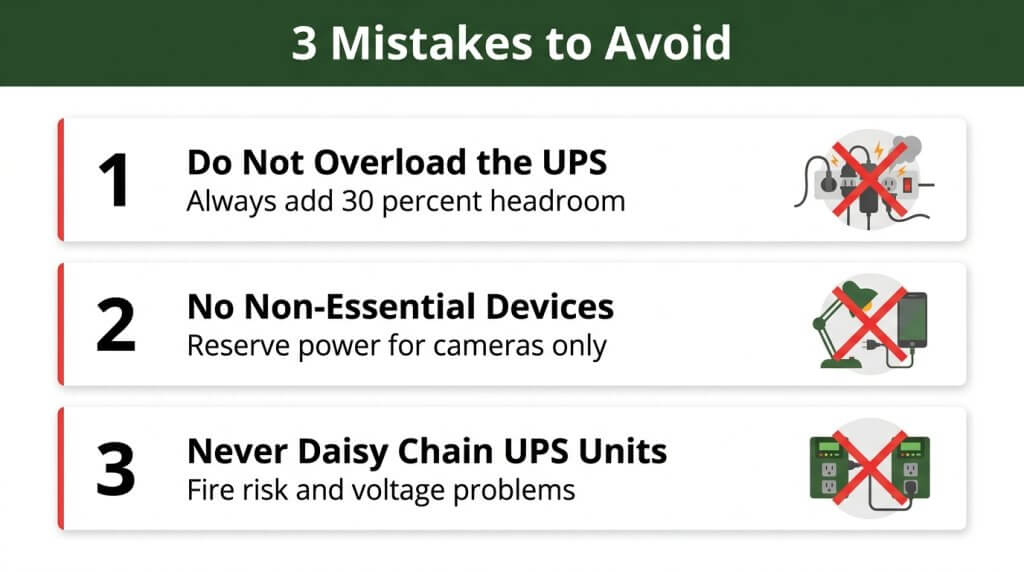
The common mistakes you should avoid during installation include overloading the UPS, connecting non-essential devices, and daisy-chaining multiple units. Each error compromises backup reliability for your DVR/NVR.
What Happens If You Overload the UPS Beyond Its Capacity?
Overloading the UPS beyond its capacity causes frequent overload alarms, forced shutdowns, and potential hardware damage to your DVR/NVR. According to ACDC Integrated Solutions, installing a UPS without calculating the total load, including future expansion needs and specific runtime requirements, often results in frequent overload alarms and system failures.
Overloading also accelerates battery degradation, shortening replacement cycles significantly. Always size your UPS with at least 30% headroom above your total connected load. For surveillance systems that may grow over time, this buffer is not optional; it is the single most effective safeguard against premature system failure.
Why Should You Avoid Plugging Non-Essential Devices In?
You should avoid plugging non-essential devices in because they consume valuable battery runtime that your DVR/NVR needs during an outage. Every watt drawn by a desk lamp, phone charger, or peripheral monitor reduces the minutes available for recording critical security footage.
Dedicated UPS outlets should power only essential surveillance equipment:
- DVR or NVR unit
- PoE switch feeding IP cameras
- Network router or modem (if required for remote access)
Reserving UPS capacity exclusively for surveillance components ensures maximum runtime when it matters most. Even a single non-essential device can cut backup time by 20 to 30 minutes depending on its draw.
Why Should You Never Daisy-Chain Multiple UPS Units?
You should never daisy-chain multiple UPS units because this practice creates serious safety hazards without providing the expected benefit. Many installers assume connecting two UPS units in series doubles backup runtime, but this is a dangerous misconception.
According to Power Solutions, daisy-chaining UPS units in series does not increase runtime but instead creates a serious fire hazard and potential for voltage instability. The downstream unit receives conditioned, battery-shaped waveforms that confuse its own transfer logic, leading to unpredictable switching behavior.
If you need longer runtime, upgrade to a higher-capacity UPS or add an external battery pack designed for your specific model. Proper UPS maintenance protects both your equipment and your investment over time.
How Do You Maintain a UPS to Ensure Long-Term Reliability?
You maintain a UPS to ensure long-term reliability through regular battery replacement and periodic backup testing. The following subsections cover battery lifespan by chemistry type and how to verify your system performs under real outage conditions.
How Often Should You Replace the UPS Battery?
You should replace the UPS battery every 3 to 5 years for lead-acid models, or every 8 to 12 years for lithium-ion units. Battery chemistry determines the replacement cycle more than any other factor.
According to Manly Battery, lithium-ion UPS batteries have a typical planning range of 8 to 12 years for replacement, significantly longer than traditional lead-acid batteries that often need swapping every 3 to 5 years. For smaller UPS systems under 1 kVA, which are common in home surveillance setups, batteries typically need replacement every three to four years even under lighter loads.
Environmental conditions accelerate degradation. High ambient temperatures, frequent deep discharges, and poor ventilation shorten battery life regardless of chemistry. Monitoring your UPS battery health indicator, if available, helps you catch declining capacity before a real outage exposes the weakness.
How Do You Test Your UPS Backup Periodically?
You test your UPS backup periodically by performing a manual self-test at least once every three months. Most modern UPS units include a front-panel test button or software-initiated diagnostic that simulates a power loss and confirms the battery can hold the load.
Follow these steps for a reliable periodic test:
- Verify that all connected devices, including your DVR/NVR, cameras, and PoE switch, are powered and recording normally.
- Initiate the self-test through the UPS front panel button or management software.
- Confirm the UPS transitions to battery without interrupting the surveillance feed.
- Check the reported runtime estimate against your expected backup duration.
- Log the test date, runtime result, and any warning indicators for future reference.
If runtime drops noticeably between tests, the battery is approaching end of life. Replacing it before total failure keeps your security cameras recording when it matters most. With a solid maintenance routine established, professional monitoring adds another layer of protection beyond power backup alone.
How Does Professional Monitoring Protect Cameras Beyond Power?
Professional monitoring protects cameras beyond power by adding AI-driven threat detection and real-time human intervention to your surveillance system. The sections below cover AI-powered live video monitoring and key takeaways for your UPS installation.
Can AI-Powered Live Video Monitoring Keep Your System Secure?
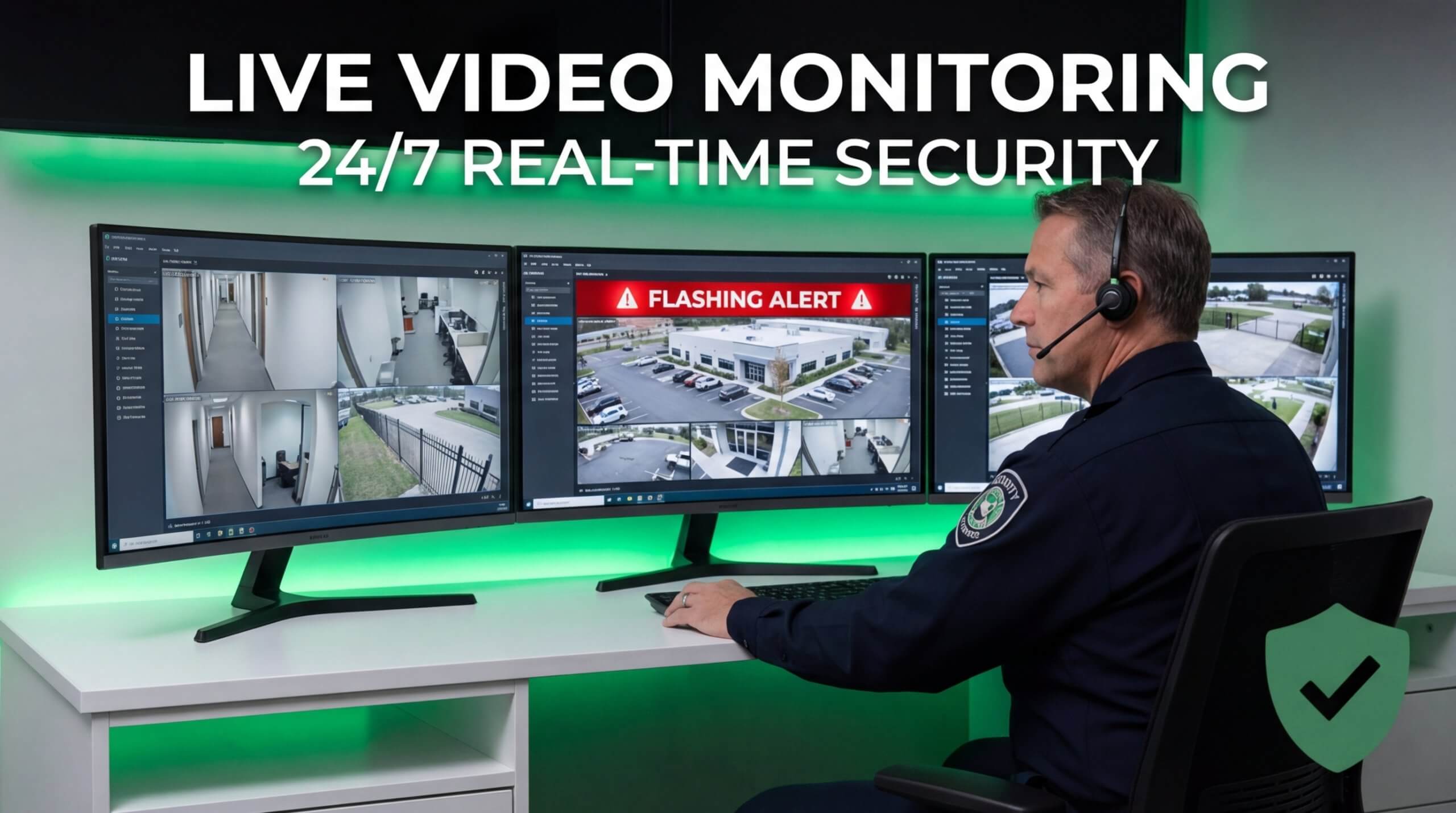
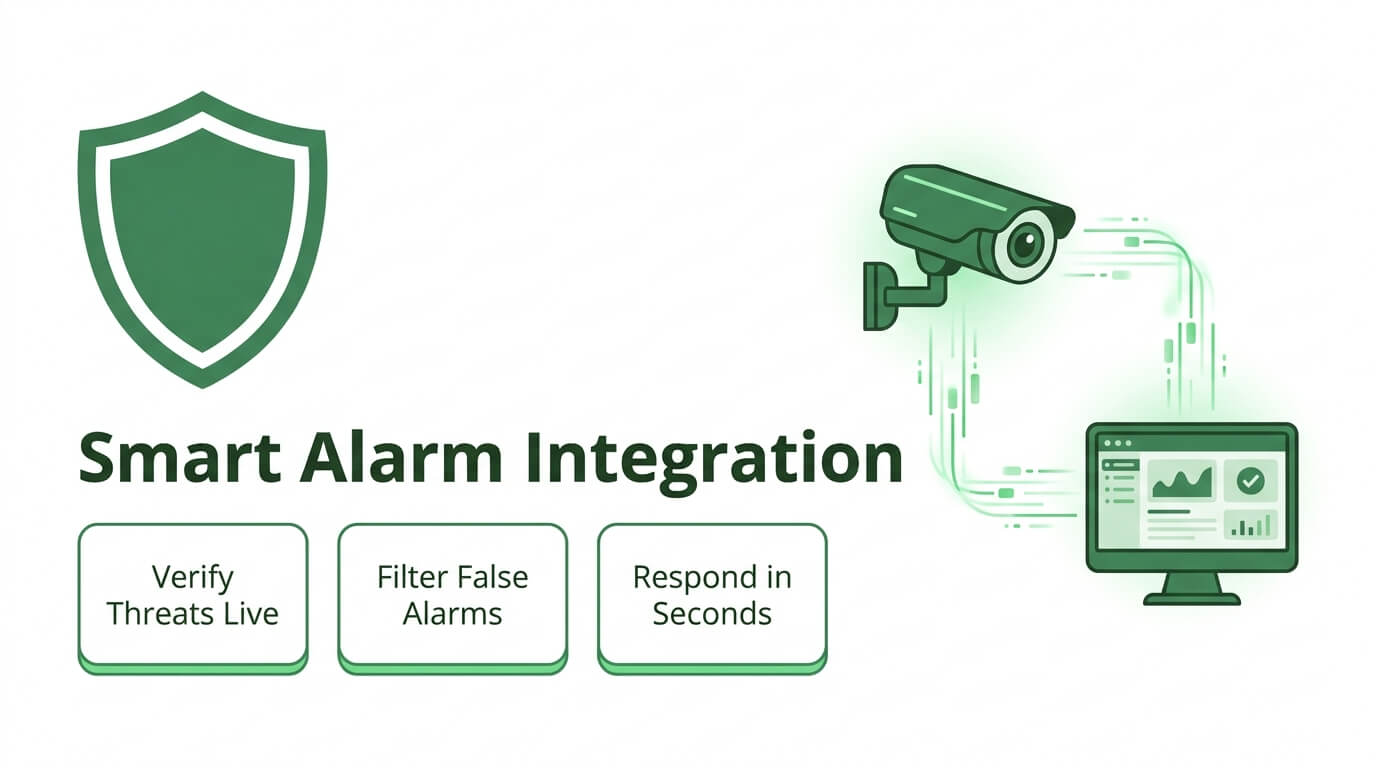
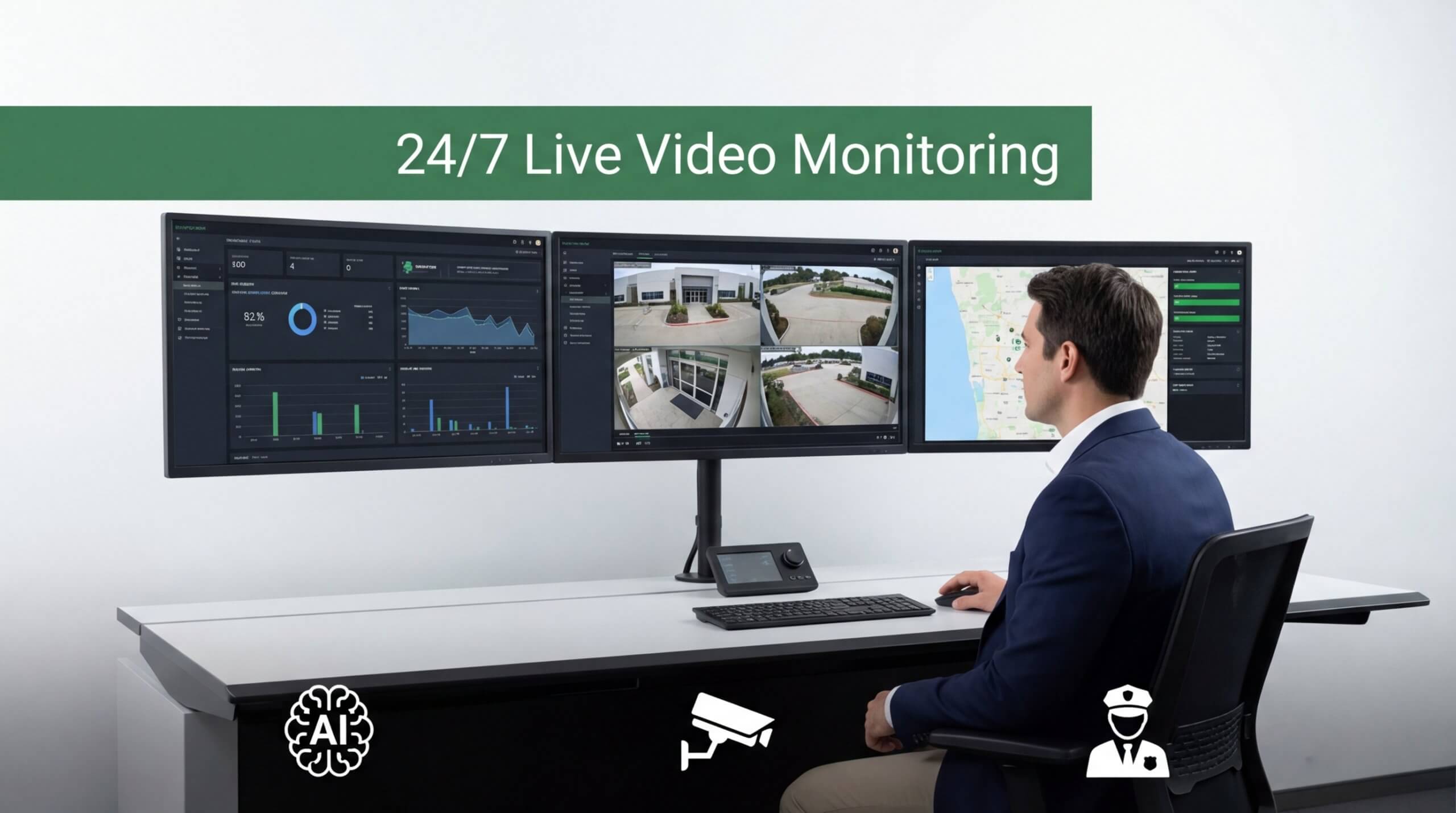
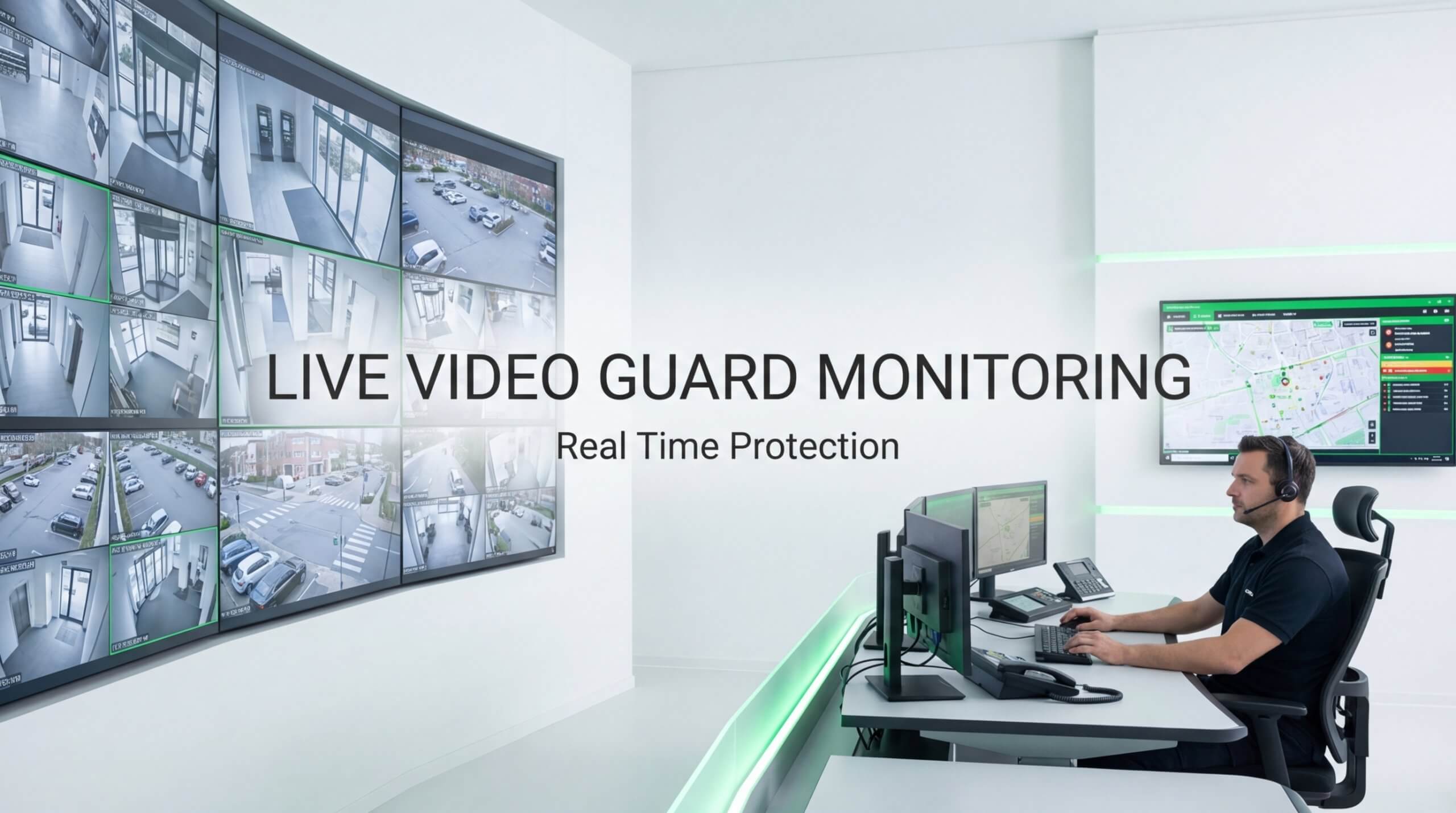
Yes, AI-powered live video monitoring can keep your system secure by combining intelligent analytics with real-time human response. A UPS keeps your DVR/NVR recording during outages, but backup power alone cannot detect, assess, or respond to threats. AI-powered monitoring fills that gap by analyzing camera feeds continuously and alerting trained operators the moment suspicious activity is detected.
According to a 2025 BOS Security report, remote real-time video monitoring solutions are associated with a 40% drop in crime through advanced surveillance and proactive threat detection. This level of deterrence goes well beyond what passive recording achieves, even on battery backup.
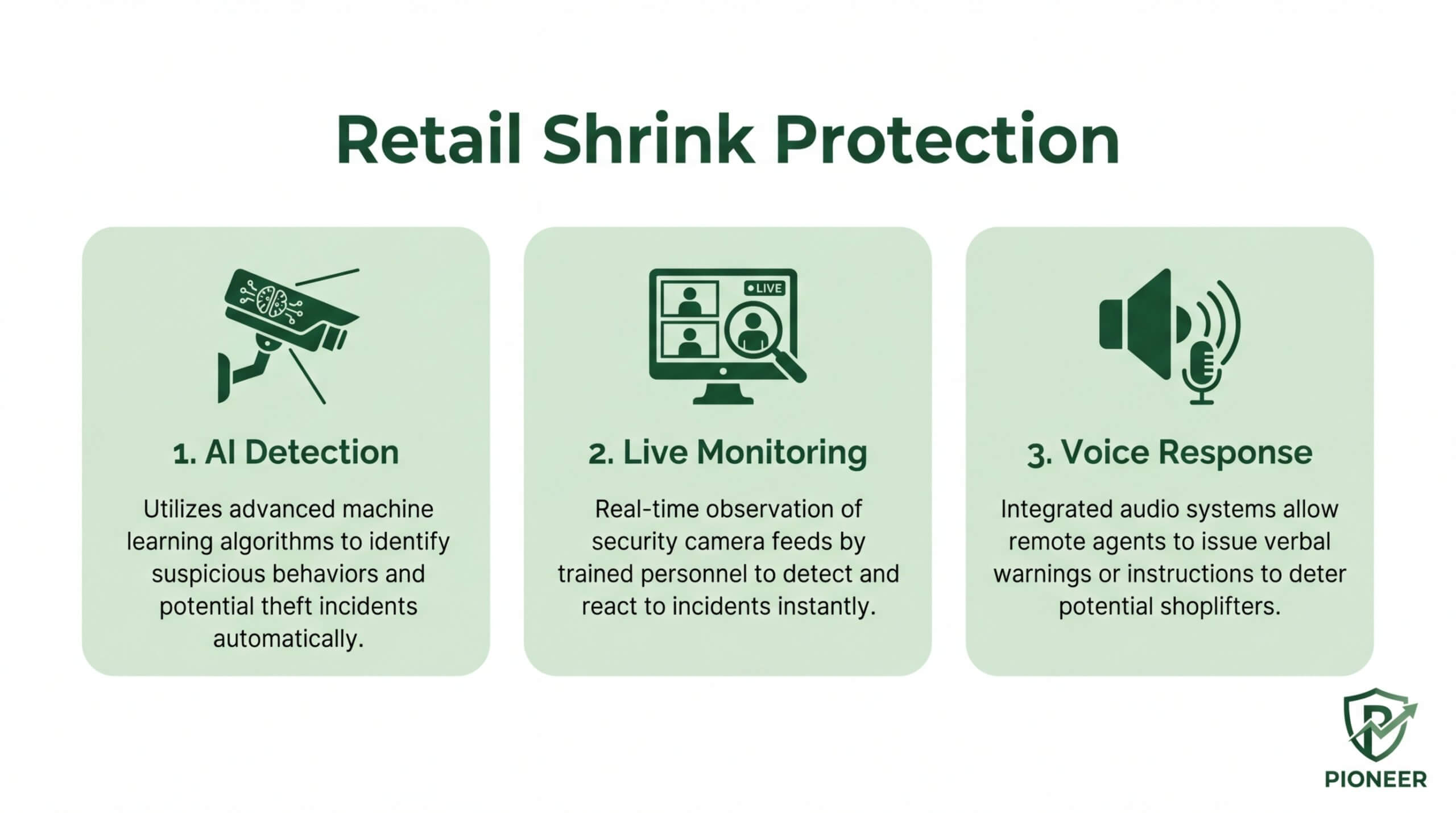
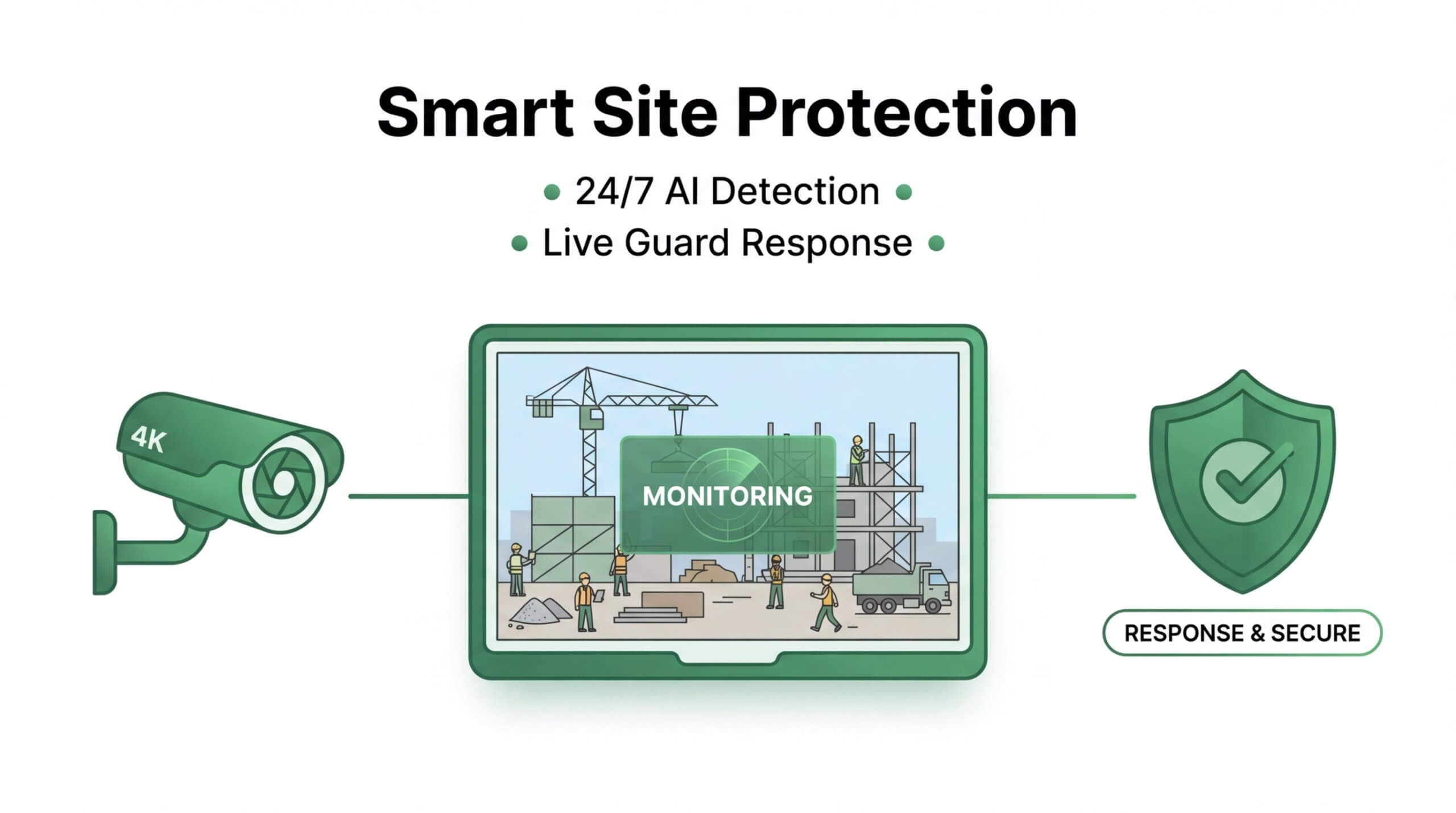
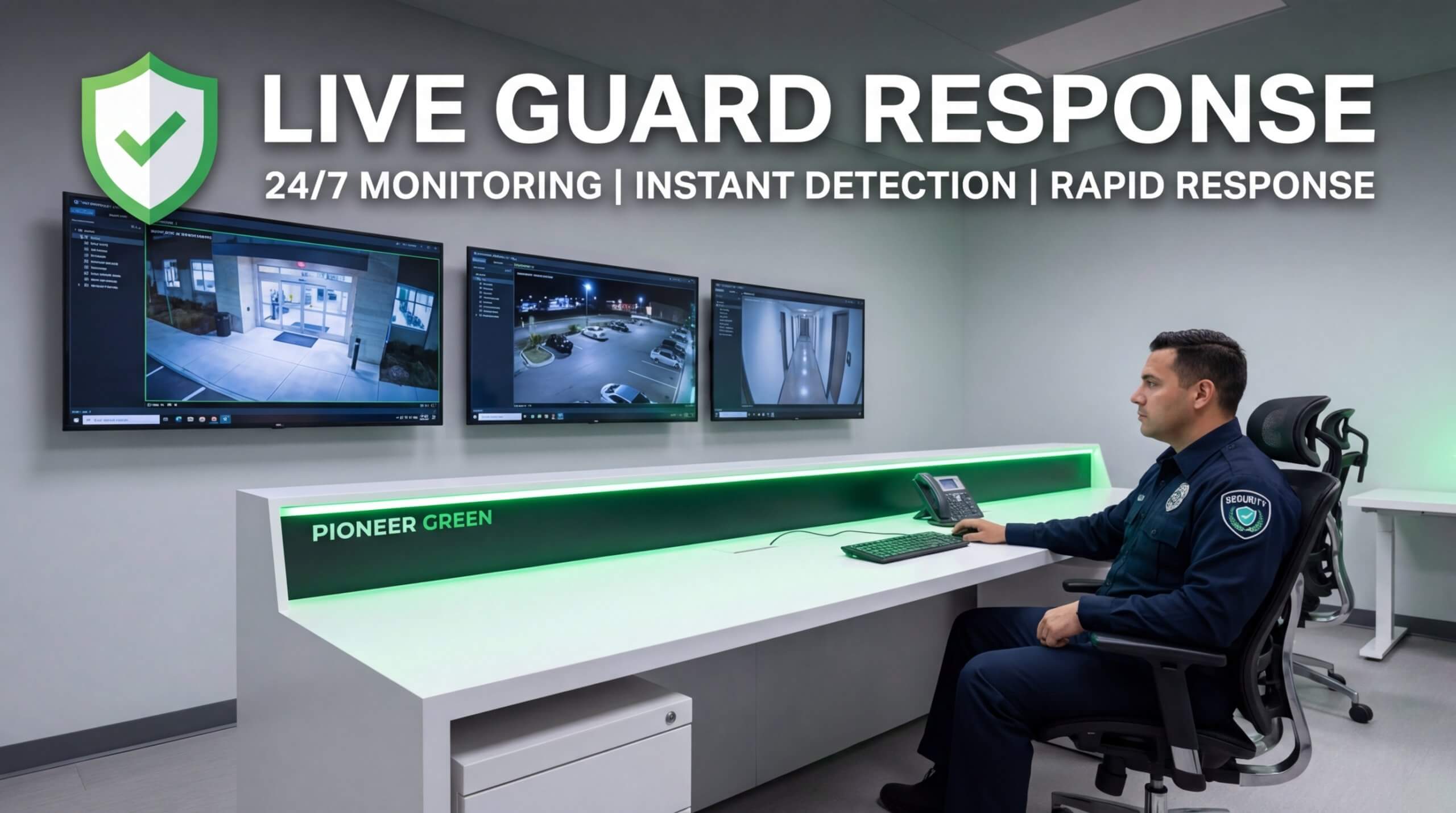
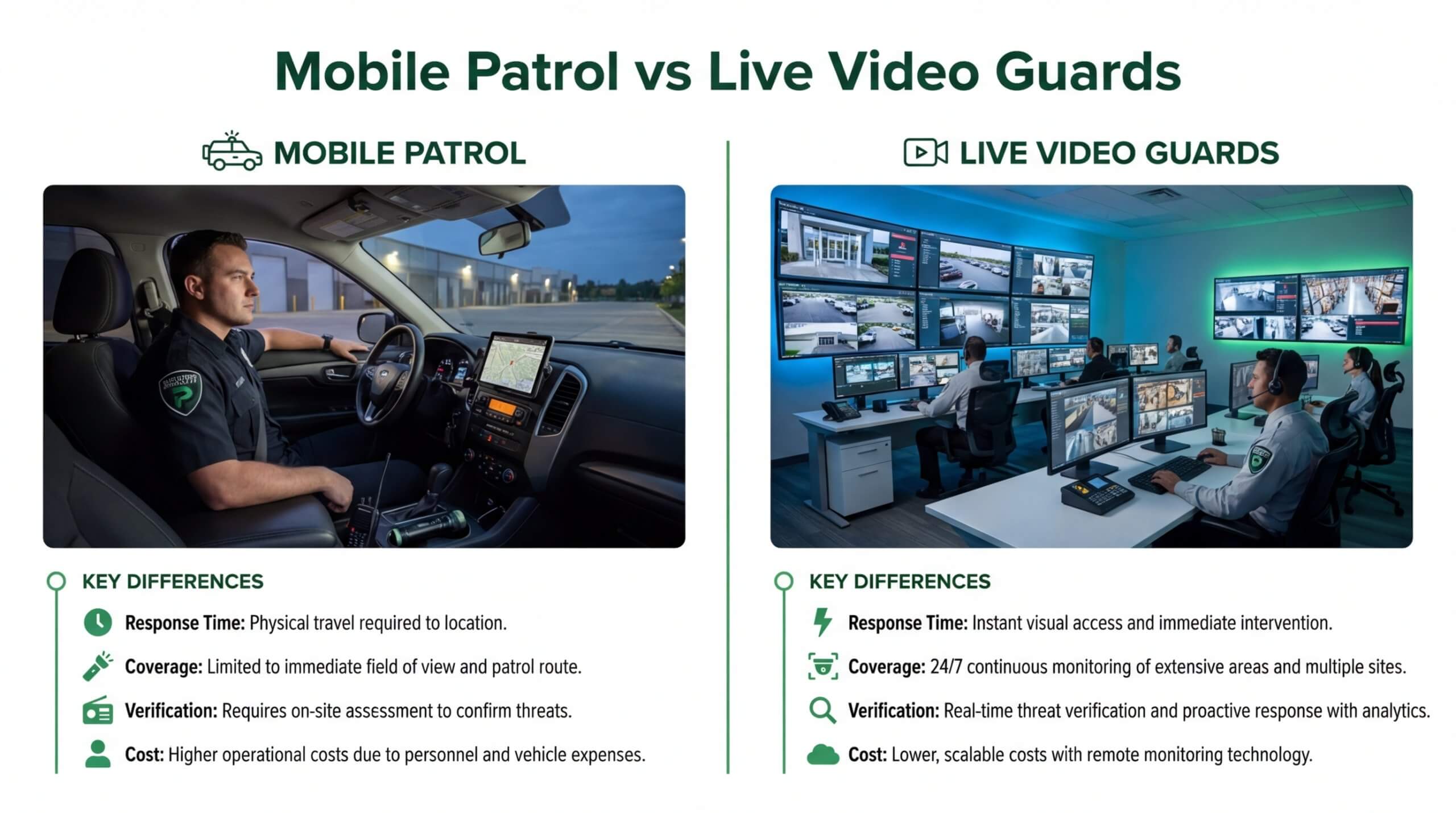
Pioneer Security combines AI-powered PoE hubs with Nvidia GPUs, 4K/8MP cameras, and US-based live video guards who use two-way audio to intervene before a crime occurs. Pairing a properly installed UPS with this kind of proactive monitoring creates a layered defense: the UPS ensures continuous recording, while AI-driven surveillance ensures someone is always watching and ready to act.
What Are the Key Takeaways About Installing a UPS for DVR/NVR?
The key takeaways about installing a UPS for a DVR/NVR center on proper sizing, correct placement, and ongoing maintenance:
- Calculate your total system wattage, including DVR/NVR, cameras, PoE switches, and hard drives, then add 30% headroom for safety and future expansion.
- Choose a line-interactive or online double-conversion UPS for surveillance systems rather than a basic standby unit.
- Place the UPS in a ventilated, temperature-controlled location to extend battery life.
- Connect only essential surveillance equipment to the UPS; keep non-critical devices on separate circuits.
- Never daisy-chain multiple UPS units or use extension cords from UPS outputs.
- Replace lead-acid batteries every three to five years, or choose lithium-ion batteries for an eight-to-twelve-year lifespan.
- Configure UPS management software to trigger graceful shutdowns before battery runtime is fully exhausted.
A reliable UPS protects your footage and hardware; pairing it with Pioneer Security’s professional monitoring ensures your property stays defended even when the power does not.